PowerA Xbox One Controller Manual: A Comprehensive Guide
PowerA delivers premium Xbox accessories, including the Fusion Pro and Special Edition controllers; this guide provides detailed instructions for optimal gaming experiences.
PowerA has rapidly become a prominent name in the world of gaming accessories, particularly recognized for its diverse range of Xbox One controllers. These controllers aim to enhance the gaming experience, offering alternatives to the standard Xbox controller with varying features and price points. From competitively priced enhanced wired controllers to premium, customizable Fusion Pro models, PowerA caters to a broad spectrum of gamers.
The company distinguishes itself by frequently releasing Special Edition controllers themed around popular game franchises, such as Borderlands and Pac-Man, appealing to fans who desire a controller reflecting their gaming preferences. PowerA controllers are designed for compatibility not only with Xbox One but also often with newer Xbox Series X/S consoles and PC, providing versatility for gamers across multiple platforms. This manual will serve as a comprehensive resource for understanding, setting up, and troubleshooting your PowerA Xbox One controller, ensuring you get the most out of your gaming sessions.
Understanding PowerA Controller Models
PowerA offers a tiered system of Xbox One controllers, each designed with specific gamers in mind. The Fusion Pro controllers represent the premium end, boasting advanced customization options like remappable buttons, adjustable stick tension, and trigger stops – catering to competitive players seeking a tailored experience. These controllers prioritize performance and control.
Conversely, the Enhanced Wired Controllers provide a more affordable entry point, delivering a solid gaming experience without the advanced features. They are a reliable choice for players who prefer a wired connection and don’t require extensive customization. Finally, Special Edition controllers, often themed around franchises like Borderlands or Pac-Man, offer a unique aesthetic alongside standard functionality. Understanding these distinctions is crucial when selecting a PowerA controller that best suits your gaming needs and budget.
Fusion Pro Controllers
Fusion Pro controllers are PowerA’s flagship offering, engineered for competitive Xbox gamers. Key features include four remappable buttons, allowing for customized control schemes to optimize in-game actions. Gamers can fine-tune analog stick tension, adjusting sensitivity for precise movements and aiming. Furthermore, adjustable trigger stops minimize travel distance, enabling faster response times in shooting games.
These controllers typically feature a premium build quality and ergonomic design for extended comfort during long gaming sessions. The Fusion Pro often includes swappable thumbsticks and paddles, further enhancing customization. Wired connectivity ensures a stable, low-latency connection, crucial for competitive play. They represent a significant investment for players prioritizing performance and personalization, offering a distinct advantage over standard controllers.
Enhanced Wired Controllers
PowerA’s Enhanced Wired Controllers provide a reliable and affordable alternative to wireless options. These controllers prioritize a stable connection, eliminating potential lag or interference during gameplay. They typically feature an ergonomic design, offering comfortable grip and extended play sessions. While lacking the extensive customization of the Fusion Pro, they often include two mappable buttons on the back, providing a degree of personalized control.
The wired connection ensures compatibility across various Xbox One models and PC. These controllers are a popular choice for gamers seeking a straightforward, dependable experience without the need for batteries or wireless pairing. They represent excellent value, delivering essential features and solid performance at a competitive price point. They are a great option for casual and competitive gamers alike.
Special Edition Controllers (e.g., Borderlands, Pac-Man)
PowerA frequently releases Special Edition controllers themed around popular game franchises like Borderlands and classic titles such as Pac-Man. These controllers offer a unique aesthetic experience, featuring artwork and color schemes inspired by the respective games. Beyond the visual customization, they generally maintain the core functionality of PowerA’s Enhanced Wired Controllers, including mappable buttons for personalized control schemes.
These limited-edition designs appeal to collectors and fans of the featured franchises. They provide a way to showcase gaming preferences while enjoying a comfortable and responsive gaming experience. Compatibility extends to Xbox Series X|S, Xbox One, and PC, offering versatility across platforms. Expect a wired connection for reliable performance and a design that celebrates beloved gaming worlds.
Controller Features & Functionality
PowerA Xbox One controllers boast a comprehensive feature set designed to enhance gameplay. The standard button layout mirrors the official Xbox controller, ensuring familiarity. PowerA controllers often include two mappable buttons on the back, allowing for customized control schemes and quicker reactions during intense gaming sessions. Analog sticks provide precise movement, while the D-pad offers accurate directional input.
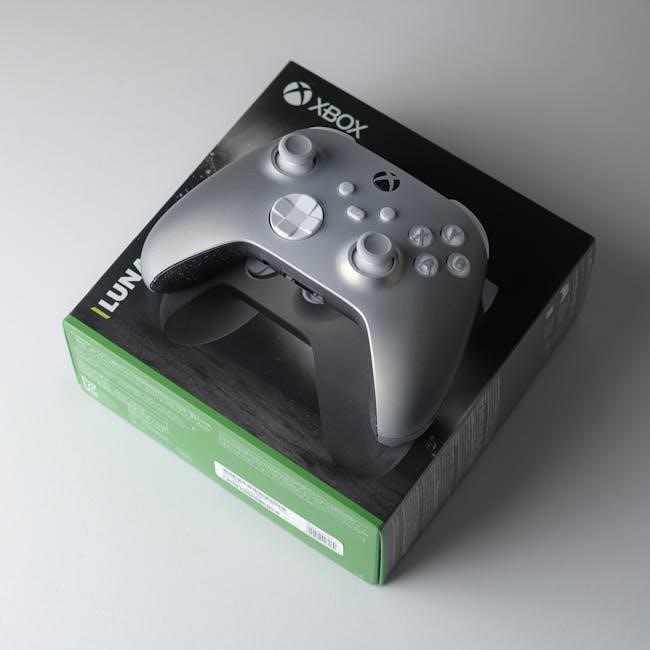
Triggers and bumpers are responsive and durable, crucial for action and racing games. Many PowerA models feature a 3.5mm headset jack for integrated audio. Wired connectivity ensures a stable, lag-free connection. Some controllers, like the Fusion Pro, offer advanced features like adjustable stick tension and trigger stops for a tailored experience.
Button Layout and Mapping
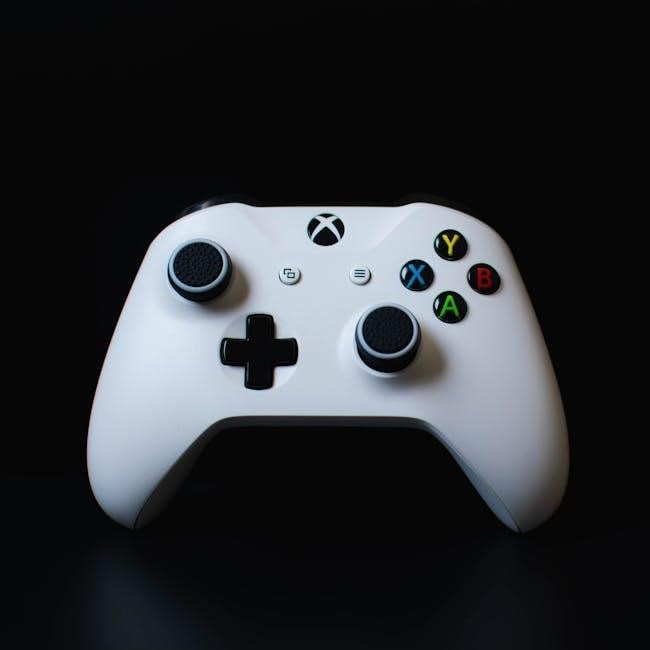
The PowerA Xbox One controller generally adheres to the standard Xbox button configuration: A, B, X, and Y action buttons, directional pad (D-pad), analog sticks, bumpers (LB/RB), triggers (LT/RT), and the Xbox button; However, a key feature of many PowerA controllers is the inclusion of two additional, mappable buttons on the rear of the controller.
These back buttons can be assigned any function from the face buttons, sticks, or D-pad, offering a significant competitive advantage. Mapping is typically done through the PowerA software (if applicable) or via the Xbox system settings. This customization allows players to perform complex actions without removing their thumbs from the analog sticks, improving reaction time and control. Experimentation is encouraged to find the optimal layout for individual gaming styles.
Analog Sticks & D-Pad
PowerA Xbox One controllers feature responsive analog sticks crucial for precise movement and aiming in games. The tension of these sticks can be adjusted on Fusion Pro models, allowing players to customize the resistance to their preference – tighter for accuracy, looser for quick turns. The D-pad is designed for accurate directional input, vital for fighting games and menu navigation.
Some users may experience “stick drift,” where the character moves without input. This can often be mitigated through controller settings within the Xbox system menu, adjusting the dead zone. Regularly cleaning around the base of the sticks can also help prevent debris from causing issues. The quality of the components ensures reliable performance, but proper maintenance is key to longevity.
Triggers and Bumpers
PowerA Xbox One controllers utilize responsive triggers (left and right) and bumpers (left and right) for essential in-game actions like accelerating, braking, shooting, and switching weapons. The triggers offer a comfortable pull distance, providing tactile feedback for precise control. Fusion Pro controllers take this further with adjustable trigger stops, allowing users to limit the trigger travel for faster activation – beneficial in competitive shooters.
Bumpers are designed for quick and reliable presses, often mapped to actions requiring immediate response. Ensuring these buttons are free from debris is crucial for consistent performance. If a trigger or bumper feels sticky or unresponsive, a gentle cleaning with compressed air may resolve the issue. Regular use and proper care will maintain their functionality.
Wireless Connectivity (if applicable)
Certain PowerA Xbox One controllers, particularly Special Edition models like the Borderlands 4 controller, offer wireless connectivity via Bluetooth. To connect wirelessly, navigate to the Xbox settings menu, then Devices & connections, and select “Add device.” Ensure your controller is in pairing mode – typically by holding the Xbox button until it begins rapidly flashing.
Once detected, select the controller from the list to complete the pairing process. Wireless range is generally reliable within a typical gaming setup. Battery life varies depending on usage, but PowerA controllers generally provide several hours of gameplay on a full charge. A low battery indicator will appear on-screen when power is running low, prompting you to connect via USB for continued play.
Setting Up Your PowerA Xbox One Controller
Setting up your PowerA Xbox One controller is straightforward. For wired connections, simply plug the USB cable into an available port on your Xbox One or PC. The system should automatically recognize and configure the controller, requiring no additional software installation. Wireless setup, if applicable, involves navigating to the Xbox settings menu – specifically, Devices & connections – and selecting “Add device.”
Ensure the controller is in pairing mode, usually activated by holding the Xbox button. The controller will appear in the list of available devices; select it to pair. Utilizing the 3.5mm headset jack allows for direct audio connection, bypassing the need for separate adapters. Confirm audio settings within the Xbox menu to ensure proper sound output through the connected headset.
Initial Pairing Process
The initial pairing process for a wireless PowerA Xbox One controller typically begins by pressing and holding the Xbox button on the controller itself. This action initiates pairing mode, indicated by a flashing Xbox button. Simultaneously, navigate to the “Devices & connections” section within your Xbox One’s settings menu. Select “Add device” and then choose “Xbox Wireless Controller” from the options presented.
The Xbox One will then scan for nearby controllers in pairing mode. Once your PowerA controller appears in the list, select it to begin the pairing sequence. A successful pairing is confirmed when the Xbox button on the controller illuminates steadily. If pairing fails, ensure the controller has sufficient battery power and is within range of the console. Repeat the process if necessary.
Connecting via USB
For a wired connection, simply plug the included USB cable into an available USB port on your Xbox One console. The PowerA controller will be automatically recognized and configured, eliminating the need for any additional pairing steps. This method is particularly useful for ensuring a stable connection during intense gaming sessions or when a wireless signal might be unreliable.
Using the USB connection also allows the controller to charge while in use, providing uninterrupted gameplay. Some PowerA models may support data transfer via USB, enabling firmware updates or customization through compatible software. Ensure the USB cable is securely connected to both the controller and the console for optimal performance. A wired connection bypasses potential interference issues.
Using the 3.5mm Headset Jack
The PowerA Xbox One controller features a standard 3;5mm headset jack, allowing you to connect compatible gaming headsets directly to the controller for immersive audio. Simply plug your headset’s connector into the jack located on the bottom of the controller. The controller will automatically route audio through the headset, bypassing the television speakers.
Ensure your headset is fully inserted for optimal sound quality. You can then adjust the volume using the dedicated volume controls, often found on the controller itself or on the headset cable. This provides convenient, in-game audio adjustments. This feature supports both microphone input and audio output, enabling clear communication with teammates during online multiplayer sessions. Compatibility with all headsets isn’t guaranteed, but most standard gaming headsets will function seamlessly.
Customization Options
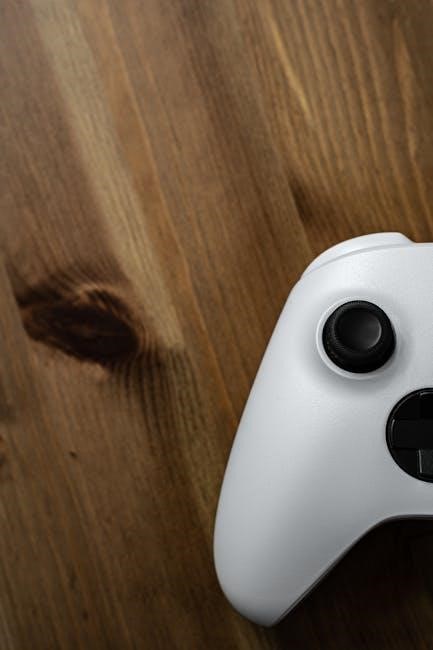
PowerA controllers, particularly the Fusion Pro line, offer extensive customization to tailor your gaming experience. Remappable buttons allow you to assign different functions to each button, optimizing control schemes for specific games or personal preferences. This is achieved through the PowerA software (if applicable) or directly on the controller itself, depending on the model.
The Fusion Pro controllers boast adjustable stick tension, letting you modify the resistance of the analog sticks for precise movements. Additionally, trigger stop adjustment allows you to limit trigger travel, resulting in quicker response times for shooting games. These features provide a competitive edge and enhance overall comfort. Explore these options to find the perfect configuration for your playstyle.
Remappable Buttons
PowerA controllers empower users with the ability to completely redefine their control scheme through remappable buttons. This feature is particularly prominent in the Fusion Pro line, allowing for personalized configurations to suit individual gaming styles and preferences. Utilizing the PowerA software, or onboard controls depending on the model, players can assign alternative functions to any button on the controller.
This customization extends beyond simple reassignments; complex macro sequences can be programmed, streamlining intricate in-game actions. Whether optimizing for faster reaction times in shooters or creating unique command combinations in RPGs, remappable buttons offer a significant advantage. Experimenting with different layouts can dramatically improve gameplay and provide a truly tailored gaming experience.

Adjustable Stick Tension (Fusion Pro)
The Fusion Pro controllers distinguish themselves with adjustable stick tension, a feature catering to players seeking precise control. This allows users to modify the resistance of the analog sticks, tailoring them to their preferred sensitivity. Included with the Fusion Pro are swappable stick caps and tension adjustment tools, enabling fine-tuning for optimal performance.
Lower tension settings facilitate quicker, more responsive movements, ideal for fast-paced action games. Conversely, higher tension provides increased precision and control, beneficial for aiming in shooters or navigating complex environments. This customization ensures a comfortable and accurate experience, regardless of gaming style. Experimentation is key to finding the perfect balance, maximizing responsiveness and minimizing unwanted movements.
Trigger Stop Adjustment (Fusion Pro)
Fusion Pro controllers offer a unique advantage with adjustable trigger stops, enhancing reaction time and control in shooting games. These stops physically limit the travel distance of the left and right triggers, resulting in faster trigger pulls and quicker shots. The included tool allows users to easily adjust the stop points to their preference, ranging from minimal to significant reduction in trigger travel.
Shorter trigger pulls can provide a competitive edge, particularly in fast-paced shooters where milliseconds matter. Experimenting with different settings allows players to find the optimal balance between speed and control. This feature is particularly useful for games requiring rapid firing or precise timing. The Fusion Pro’s trigger stops are a testament to PowerA’s commitment to customizable gaming experiences.
Troubleshooting Common Issues
PowerA Xbox One controllers are generally reliable, but occasional issues can arise. If your controller isn’t connecting, ensure it’s properly paired or the USB cable is securely connected. For unresponsive buttons, try resetting the controller or checking for software updates. Drifting analog sticks, a common concern, may require cleaning the stick base or contacting PowerA support.
Compatibility issues can sometimes occur; verify the controller is supported by your Xbox One or PC game. Regularly check for firmware updates via the PowerA website to maintain optimal performance and address potential bugs. If problems persist, a factory reset might resolve the issue. Remember to consult the official PowerA support resources for detailed troubleshooting steps and warranty information.
Controller Not Connecting
If your PowerA Xbox One controller fails to connect, begin by verifying the power source. For wireless models, ensure fresh batteries are installed or the rechargeable battery is adequately charged. Confirm the controller is within range of the Xbox console. If using a USB connection, try a different port and ensure the cable is undamaged.
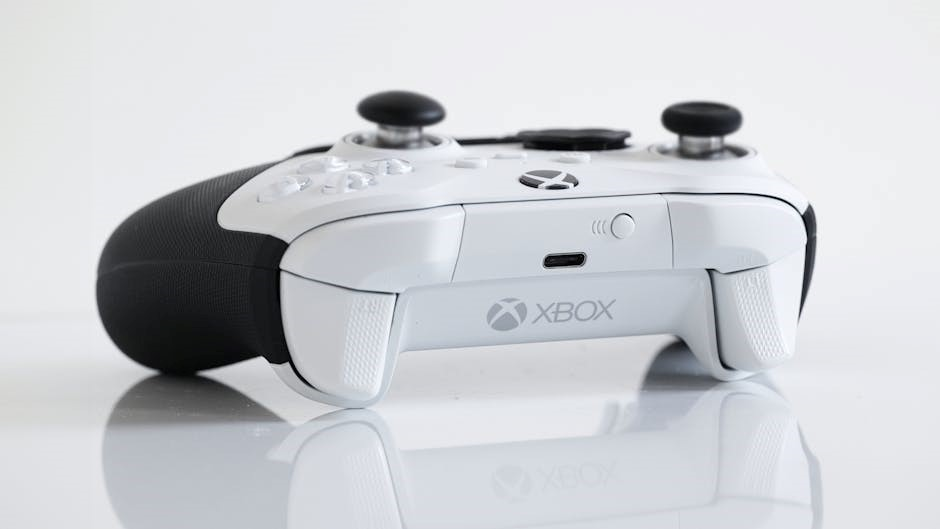
Attempt to re-pair the controller through the Xbox settings menu. A full power cycle of both the console and the controller can often resolve connectivity glitches. Check for any potential interference from other wireless devices. If the issue persists, consult the PowerA support website for specific troubleshooting steps related to your controller model, as pairing processes can vary.
Button Responsiveness Problems
Experiencing unresponsive buttons on your PowerA Xbox One controller can hinder gameplay. First, thoroughly clean the controller, paying attention to areas around the buttons, as debris can cause sticking; Check the controller’s firmware for updates via the PowerA software (if applicable) or Xbox system updates, as outdated firmware can lead to compatibility issues.
If the problem persists, test the controller on another Xbox console or PC to isolate whether the issue lies with the controller itself or the original console. For Fusion Pro controllers, verify button mapping settings haven’t been accidentally altered. If a specific button consistently fails, contact PowerA support for potential repair or replacement options, as internal damage may be present.
Drifting Analog Sticks
Analog stick drift, where your character moves without input, is a common issue. Begin by cleaning around the base of the analog sticks with compressed air to remove any dust or debris. For Fusion Pro controllers, utilize the adjustable stick tension feature to increase resistance and potentially mitigate drift. If cleaning and tension adjustments don’t resolve the problem, check for firmware updates, as these sometimes address stick calibration issues.
Test the controller on another device to determine if the drift is controller-specific. If confirmed, contact PowerA support. Disassembling the controller yourself may void the warranty. PowerA may offer repair or replacement options depending on the controller model and warranty status. Regularly maintaining your controller can help prevent this frustrating issue.
Firmware Updates & Compatibility
Maintaining up-to-date firmware is crucial for optimal PowerA controller performance and compatibility. Regularly check the PowerA website for available updates, specifically designed for your controller model. Firmware updates often include bug fixes, improved compatibility with newer Xbox systems and games, and enhanced feature functionality. The update process typically involves connecting the controller to a PC via USB and using PowerA’s software (if applicable).
Ensure your Xbox One console also has the latest system software installed for seamless integration. Compatibility extends to Xbox Series X|S and PC, but verify specific game support. Outdated firmware can lead to connectivity issues or unresponsive buttons. PowerA strives to provide broad compatibility, but updates are key to a smooth gaming experience.
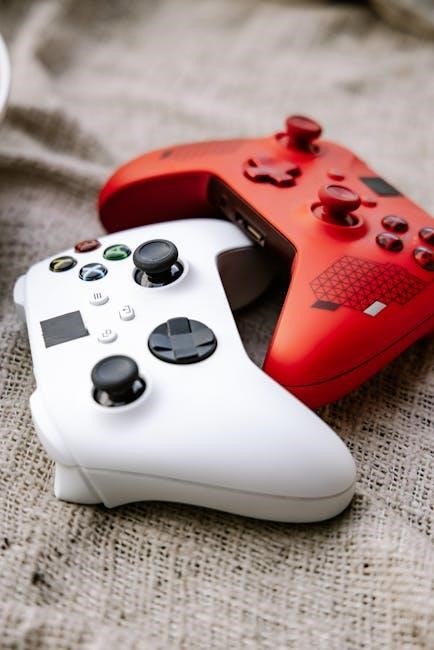
PowerA Controller Software (if applicable)
Certain PowerA controllers, particularly the Fusion Pro line, benefit from dedicated software available for download on the PowerA website. This software unlocks advanced customization options not accessible through the Xbox dashboard. Users can remap buttons, adjust stick tension, and configure trigger stop settings with precision. The software provides a user-friendly interface for creating and saving custom profiles tailored to specific games or playstyles.
It also facilitates firmware updates, ensuring your controller remains compatible and performs optimally. While not all PowerA controllers require the software, those that do offer a significantly enhanced and personalized gaming experience. Regularly check for software updates to benefit from new features and improvements.
Warranty Information & Support
PowerA controllers are backed by a limited warranty, typically covering defects in materials and workmanship for a specified period – usually one year from the date of purchase. Retain your proof of purchase for warranty claims. The warranty does not cover normal wear and tear, accidental damage, or misuse of the product.
For warranty claims, technical support, or general inquiries, visit the official PowerA website. Their support section offers FAQs, troubleshooting guides, and contact information for their customer service team. You can often find solutions to common issues online before contacting support directly. PowerA also provides community forums where users share tips and assistance.